Audience: Recipients
Purpose
A Grant Recipient user email address associated with a Login.gov account may log into GrantSolutions through Login.gov using another authentication method. The Grant Recipient user should create a Login.gov account prior to attempting to log into GrantSolutions through Login.gov using another authentication method.
To log into GrantSolutions through Login.gov using another authentication method, perform the following steps:
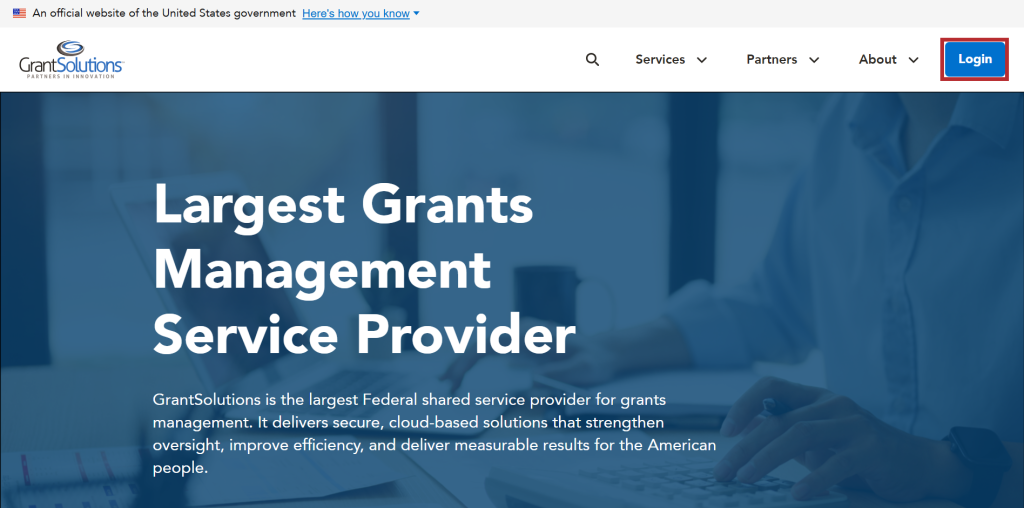
- From a browser such as Mozilla Firefox or Google Chrome, navigate to www.grantsolutions.gov and click the Login button.
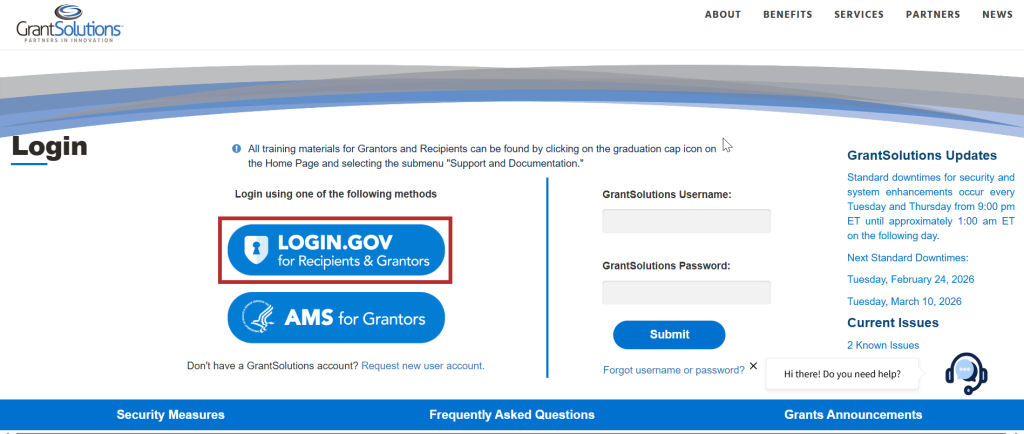
- The GrantSolutions “Login” screen appears. Click the Login.gov button.
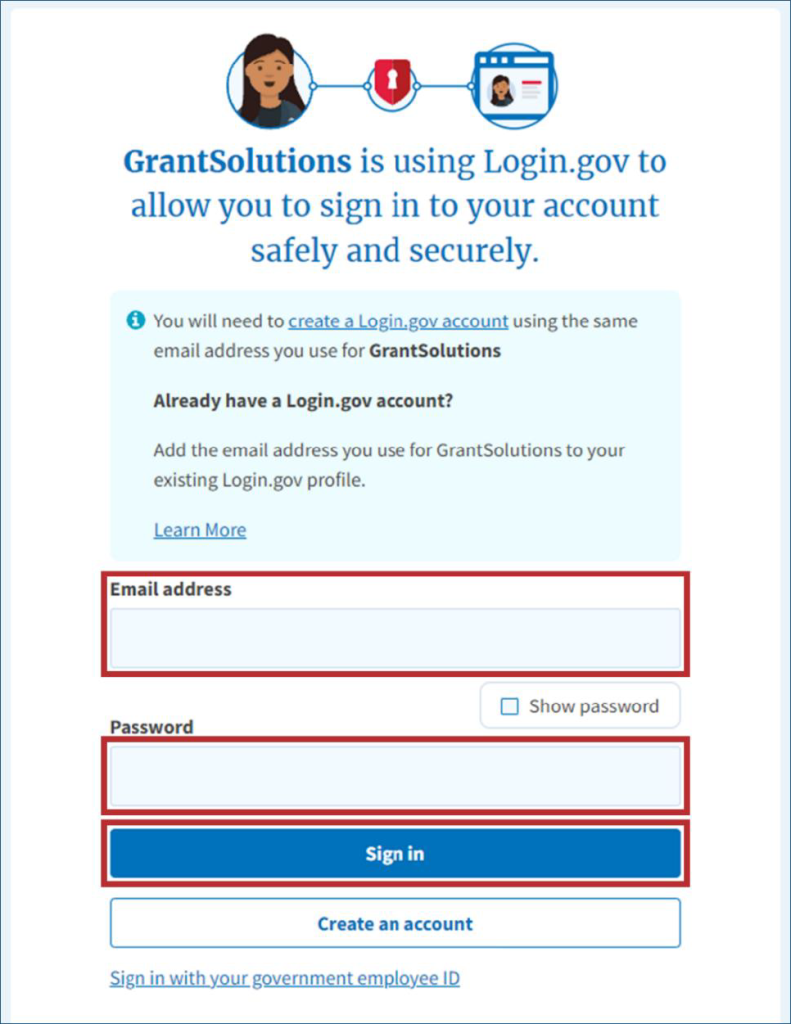
- The Login.gov “Sign in” screen appears, this time linked to GrantSolutions. Enter the email address associated with the GrantSolutions account in the Email address field and enter the Login.gov password in the Password field. Click the Sign in button.
Note: On the Login.gov “Sign in” screen, an email address associated with the GrantSolutions account is necessary for the first log in only. Perform subsequent log ins using any email address associated with the Login.gov account.
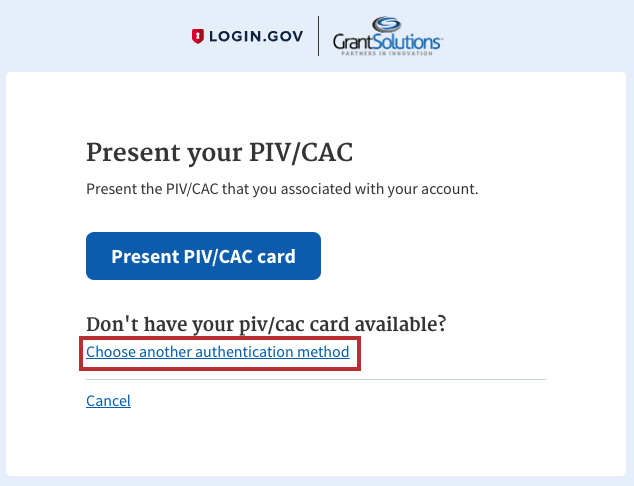
- The Login.gov “Sign in with your PIV or CAC” screen appears. Click the Choose another authentication method link.
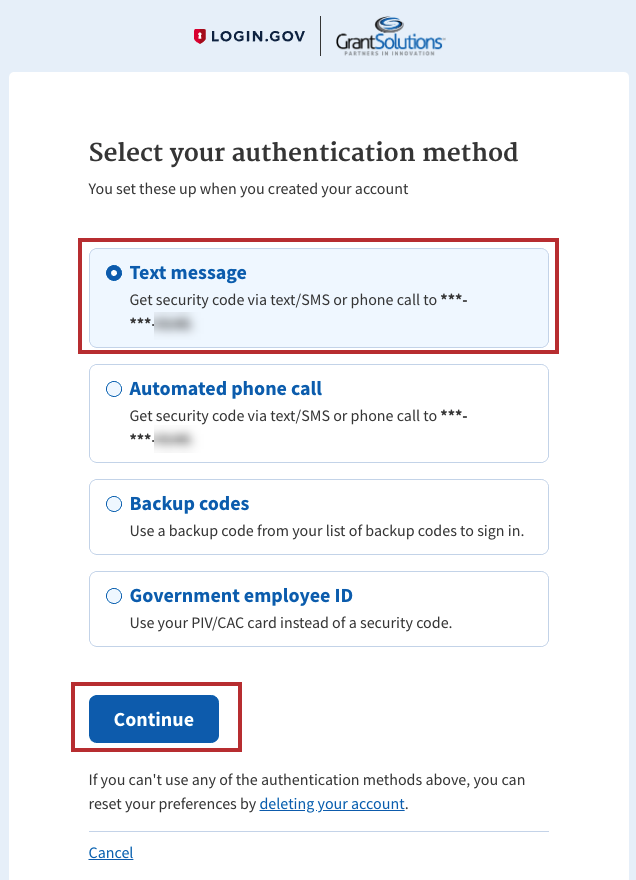
- On the Login.gov “Select your authentication method” screen, use the radio buttons to select an authentication method and click the Continue button at the bottom.
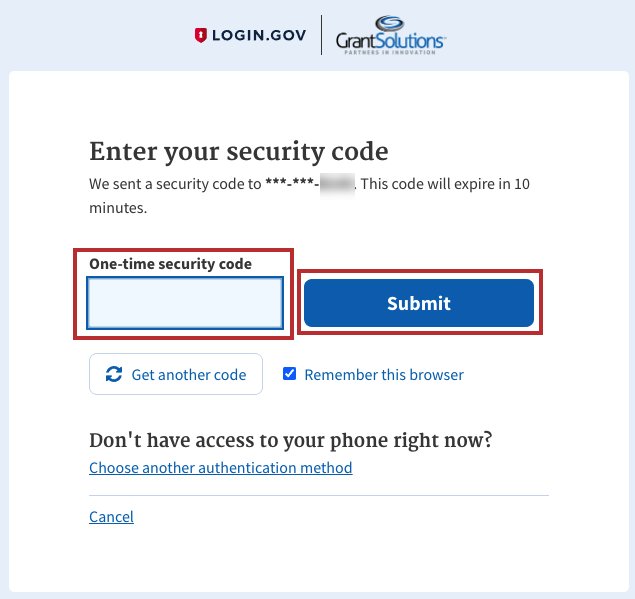
- On the Login.gov “Enter your security code” screen, enter the 6-digit One-time security code or backup code to sign in and click the Submit button.
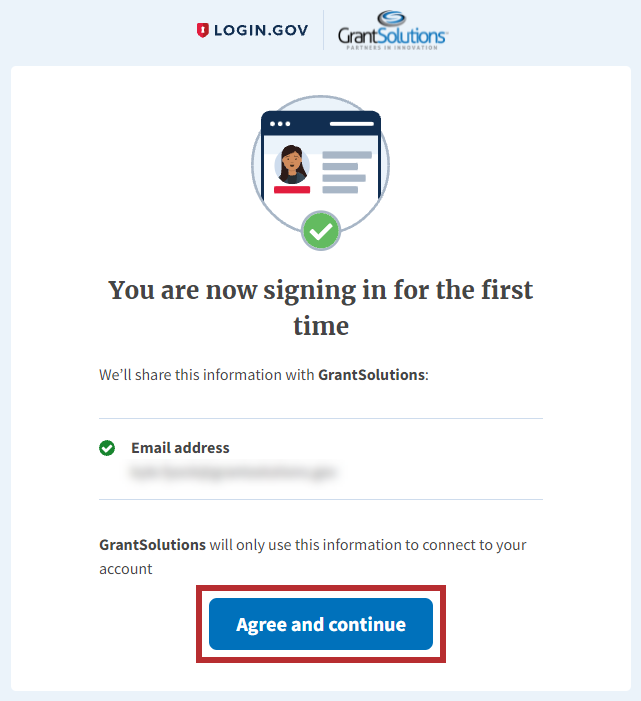
- The Login.gov “You are now signing in for the first time” screen appears with the email address used for the Login.gov account. Click the Agree and continue button at the bottom.
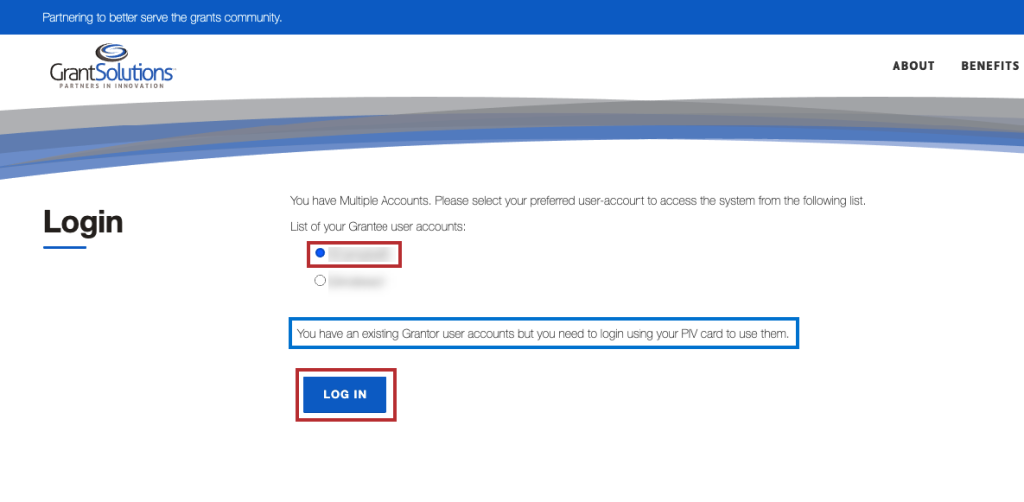
- If the user has multiple accounts associated to the GrantSolutions email address used to sign in, the GrantSolutions “Login” screen appears. The GrantSolutions email address may be associated to both Grantor and Grant Recipient accounts. However, only Grant
If a Grantor account associated to the GrantSolutions email address exists, a message appears stating, “You have an existing Grantor user accounts but you need to login using your PIV card to use them.”
Select the radio button for the Grant Recipient account to log in with and click the LOG IN button.
Note: If the user has one account only, the user bypasses the GrantSolutions “Login” screen and is routed directly to GrantSolutions.
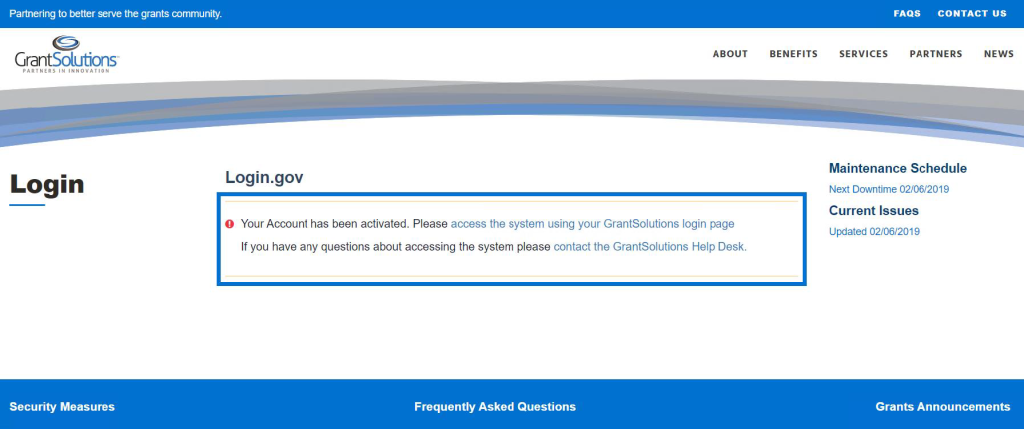
A message appears stating “Your Account has been activated. Please access the system using your GrantSolutions login page. If you have any questions about accessing the system please contact the GrantSolutions Help Desk.”
Note: This message only appears upon the first log in attempt. Each attempt after the account is activated results in successful log in.
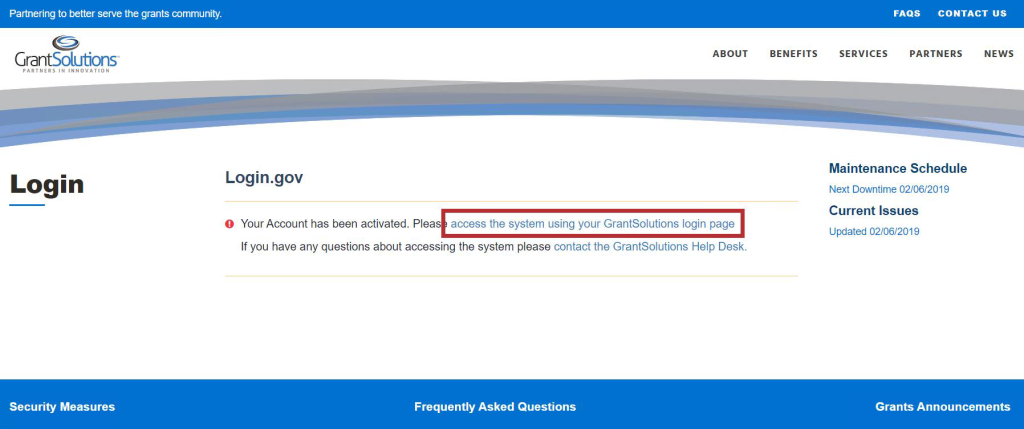
- Click the access the system using your GrantSolutions login page link to navigate to the GrantSolutions “Login” screen.
- On the GrantSolutions “Login” screen, click the Login.gov button.
- On the Login.gov “Sign in” screen, repeat the steps to log in using another login method.
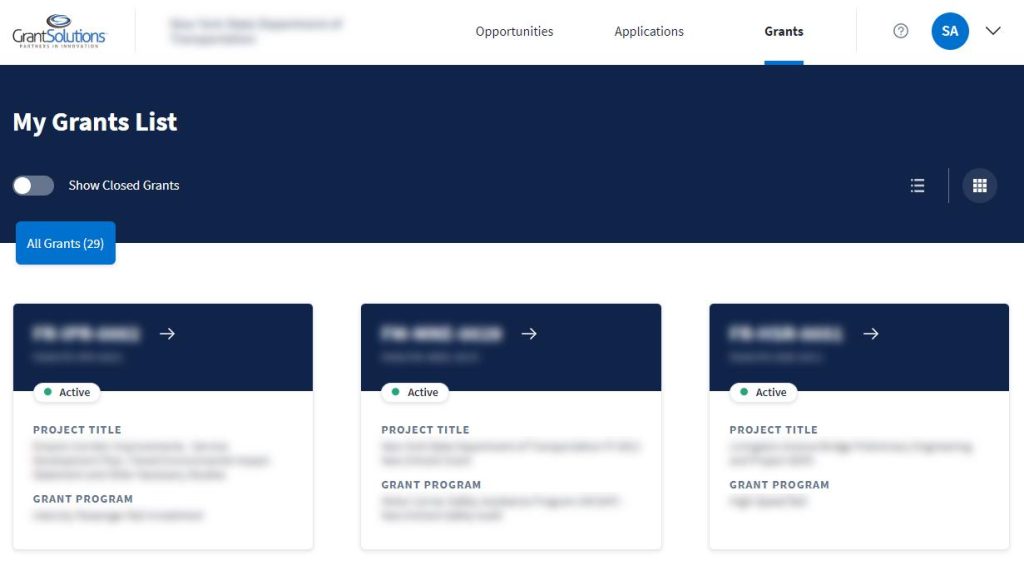
The “My Grants List” screen appears.